
Creating a VM is an easy enough task that can be left to defaults a lot of the time. But if you want the best performance and options under Proxmox, you will have to go through a few minor hoops as Windows Server 2022 (or prior) does not have the drivers needed for everything built in.
Before you begin, ensure you have both the Windows Server 2022 ISO and the VirtIO drivers ISO uploaded to your Proxmox storage. The current stable VirtIO ISO can be downloaded from fedorapeople.org.
Part 1 — VM Creation Wizard
Click on Create VM to get the dialog box. First click on Advanced if it is not already checked.
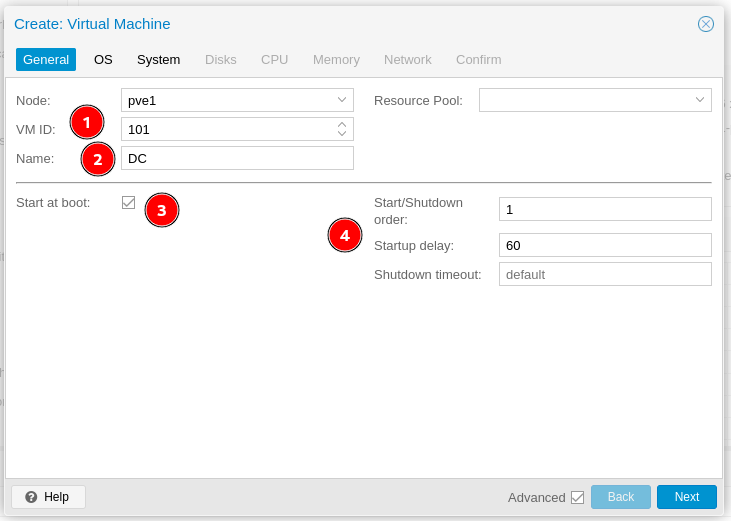
General tab
Give the VM a Name (2), VM ID (1), check Start at boot (3), and set the Start/Shutdown order and delay (4) as desired. Then hit Next.
Everything below the line is hidden if you have not checked Advanced.
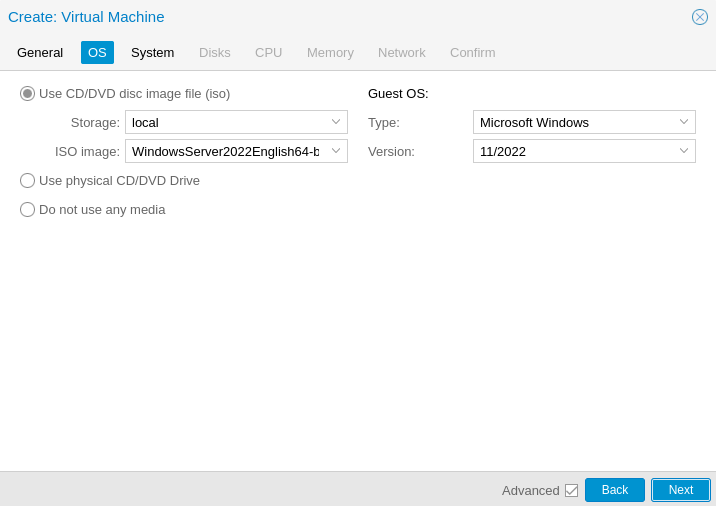
OS tab
Choose your ISO and Guest OS Type, then hit Next.
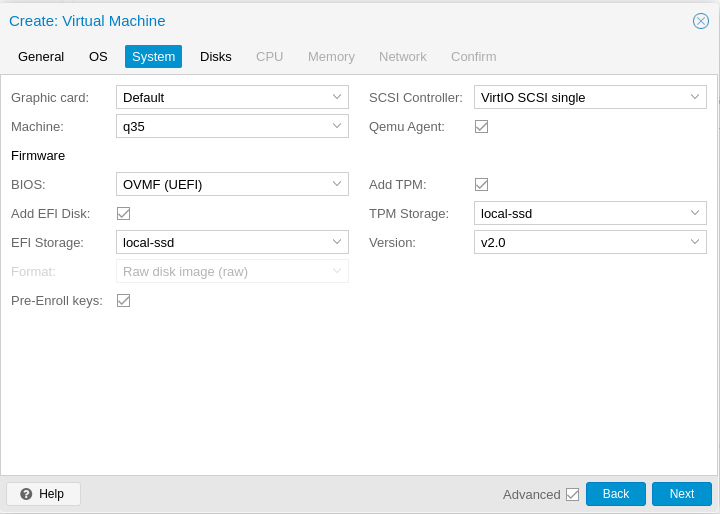
System tab
Since you specified a modern version of Windows, Proxmox automatically uses UEFI and you will need to specify EFI and TPM storage locations. I always keep them on the same disk that will house the boot storage.

By default, it will use VirtIO for storage — you want this, but will have to add a driver during the Windows install itself. Also enable the Qemu Agent; the guest agent will have to be installed after Windows setup completes.
Disks tab
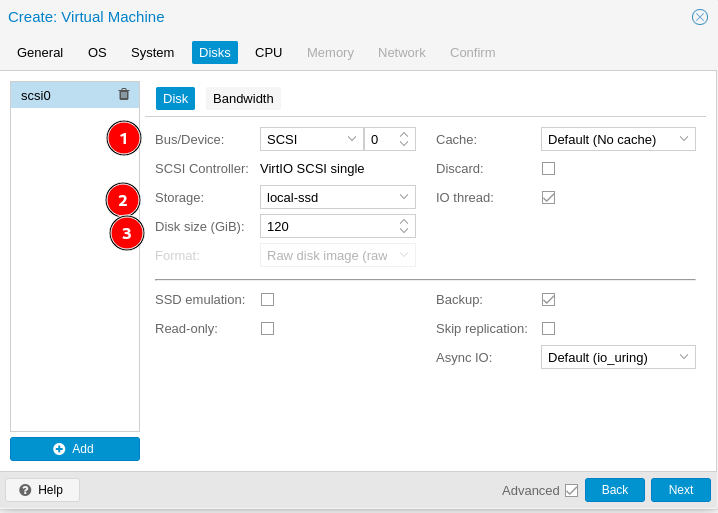
Change the default IDE disk to SCSI (1), set the storage location (2), and your desired disk size (3).
CPU tab
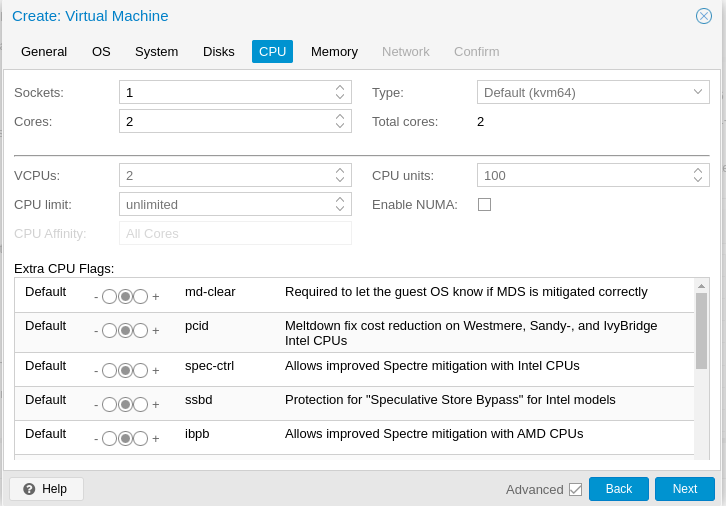
Assign the number of cores you need.
Memory tab
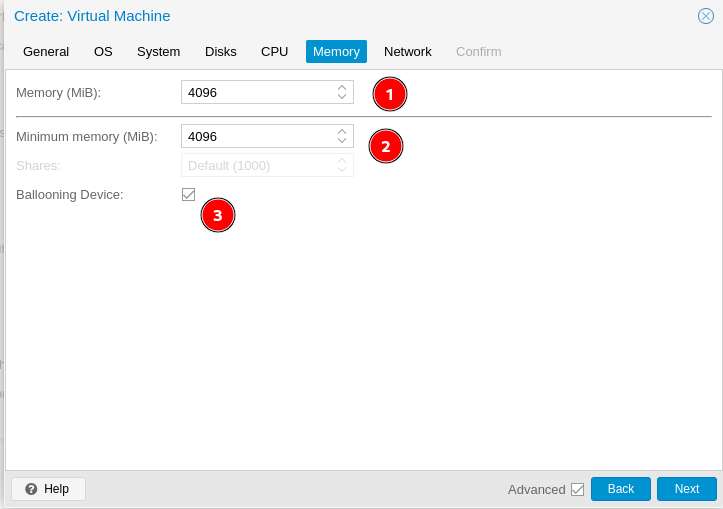
Set your max memory (1), minimum memory (2), and ensure Ballooning Device (3) remains checked.
Network tab
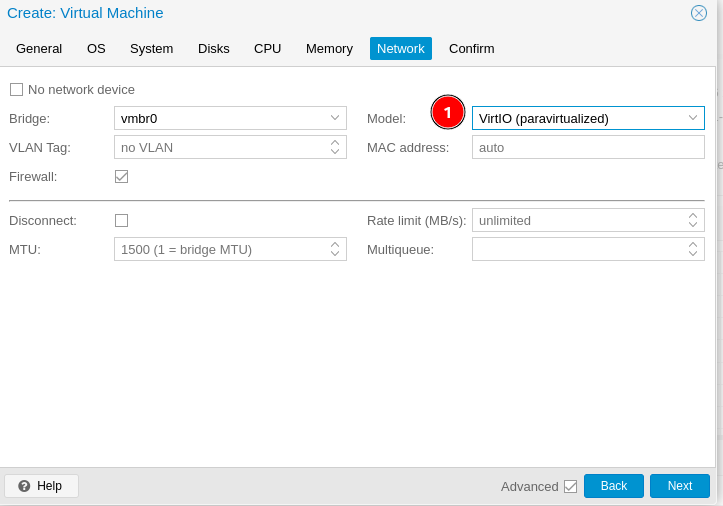
Change the network adapter model to VirtIO (paravirtualized) (1). You will not have a working network on boot up. The VirtIO drivers will need installed first.
Confirm tab
Review and hit Finish. Do not check Start after created.
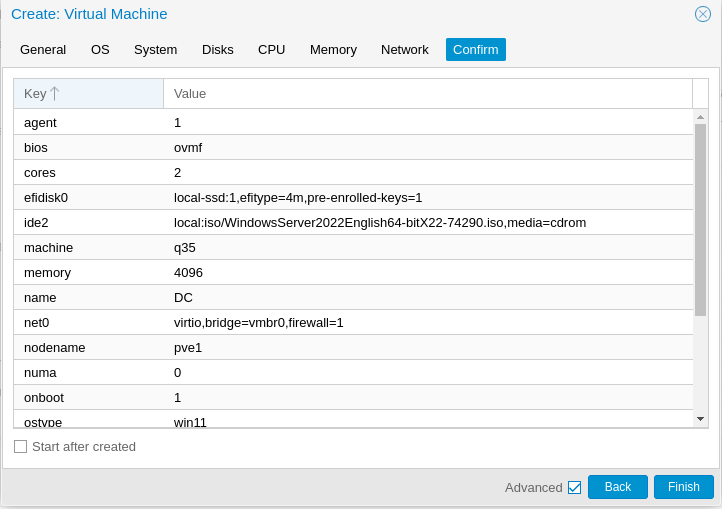
Part 2 — Attach the VirtIO Drivers ISO
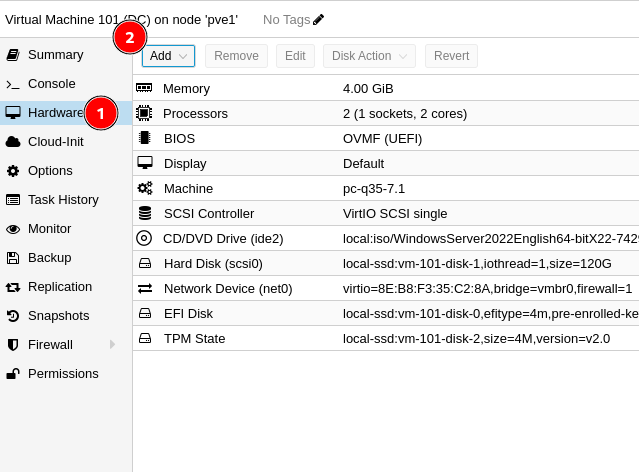
Select the VM and click on Hardware (1) and then Add (2).
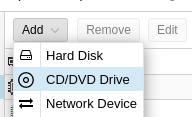
Choose CD/DVD.
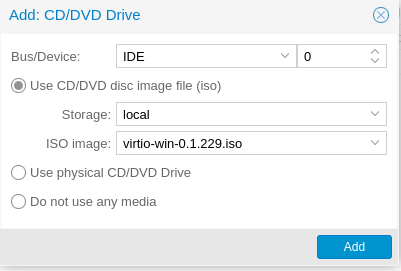
Add the virtio-win ISO — you will need this mounted to add the storage driver during install.
The current stable ISO can be found here.
You can verify your boot order if you want, but it should still be correct.
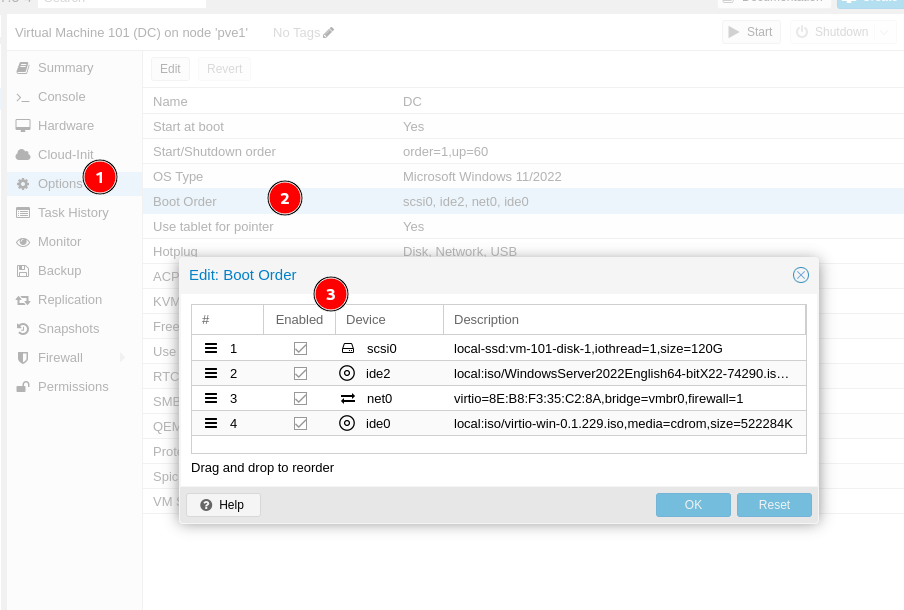
Part 3 — Windows Installation
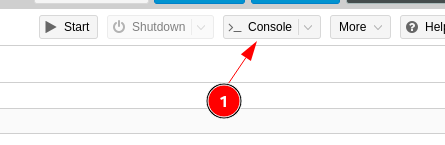
Open the Console.
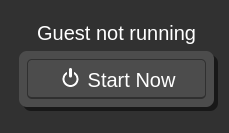
Click Start Now.
Click in the window and press a key to boot from the ISO.

Set your options and hit Next.
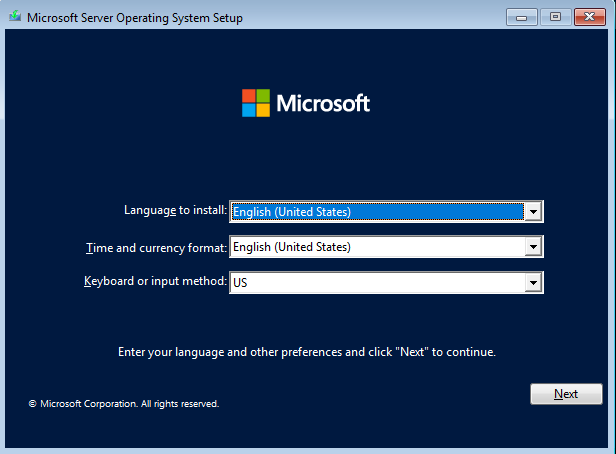
Hit Install now.
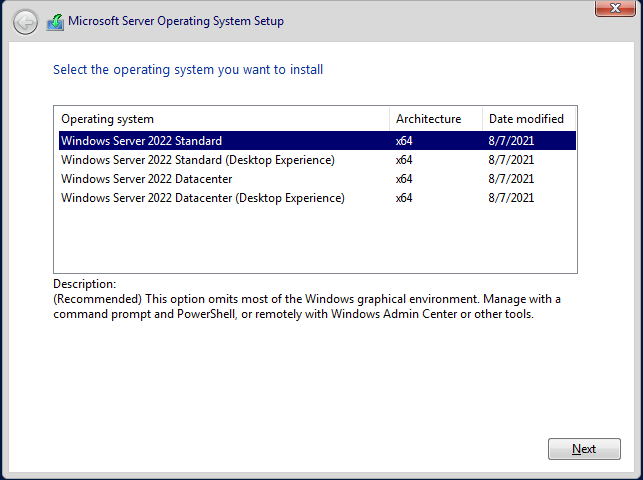
Choose your OS edition and hit Next.
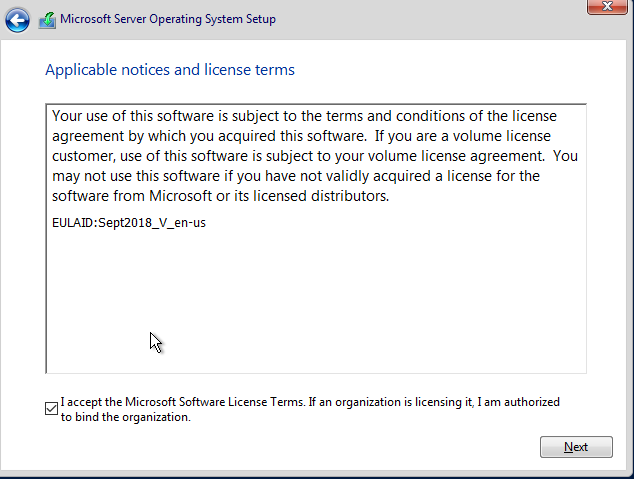
Accept the license and hit Next.
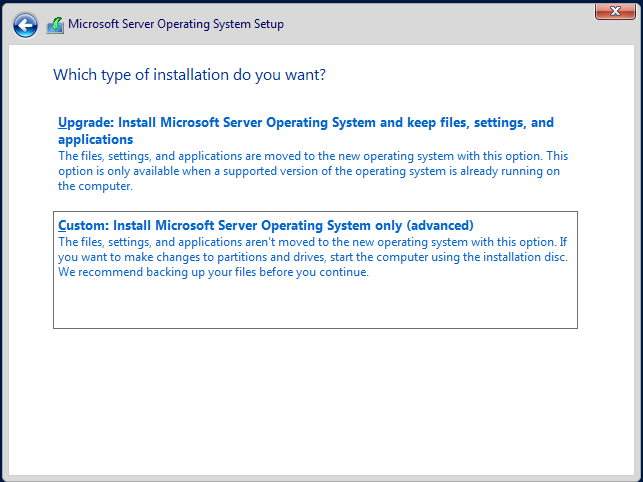
Choose Custom (Install Windows only).
Load the VirtIO storage driver
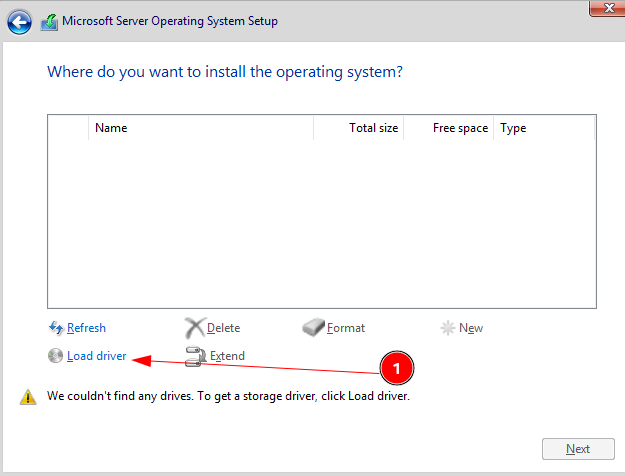
The disk list will be empty. Click Load driver (1).
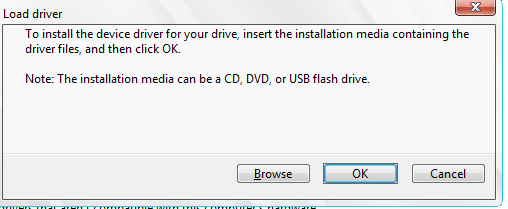
Click Browse.
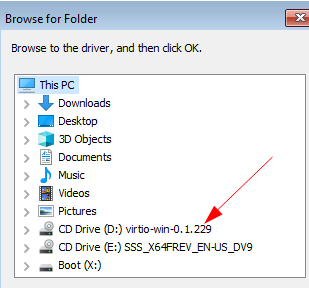
Expand the VirtIO CD Drive.
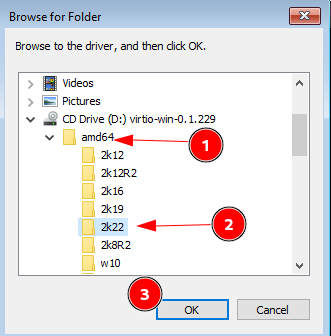
Expand the amd64 folder (1), click on 2k22 (2), and click OK (3).
Click on Next and it will rescan for the disk — no need to click on Rescan yourself.
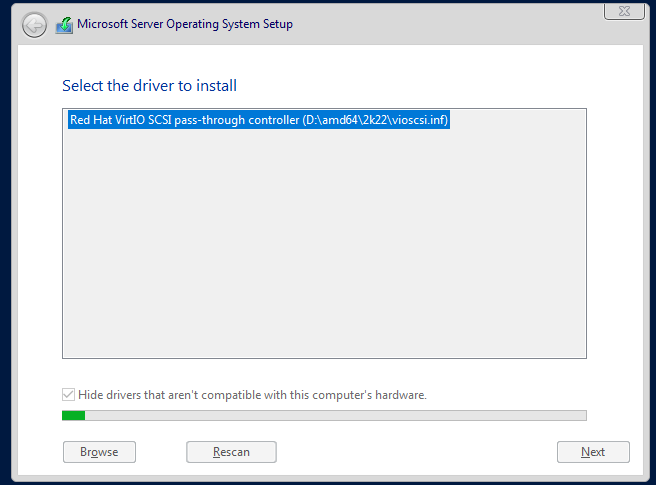
Now the disk is available, click Next.
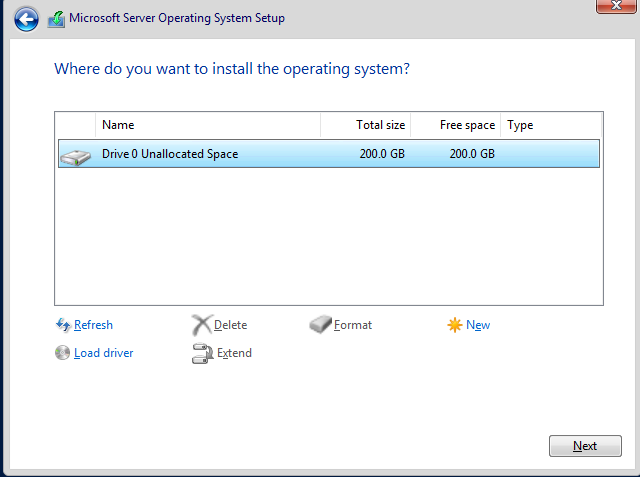
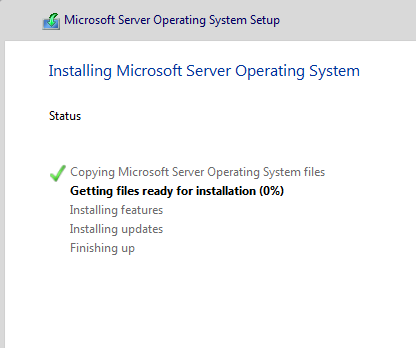
Windows will finish the install like normal and reboot.
Wait for it... it will reboot again.
Create a password for the account and click Finish.
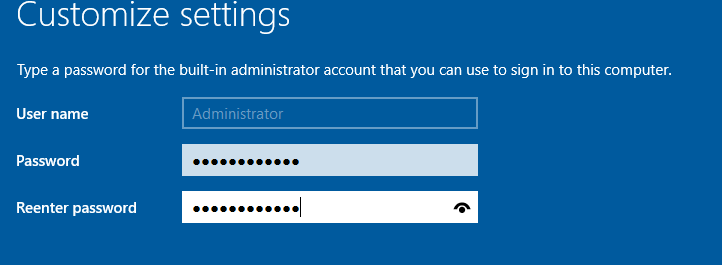
Best practice is to create a named admin account and disable or rename the built-in Administrator account.
Part 4 — Post-Install Driver Setup
This example uses the Desktop Experience, so login and wait for the desktop. Close Server Manager and the WAC pop up.
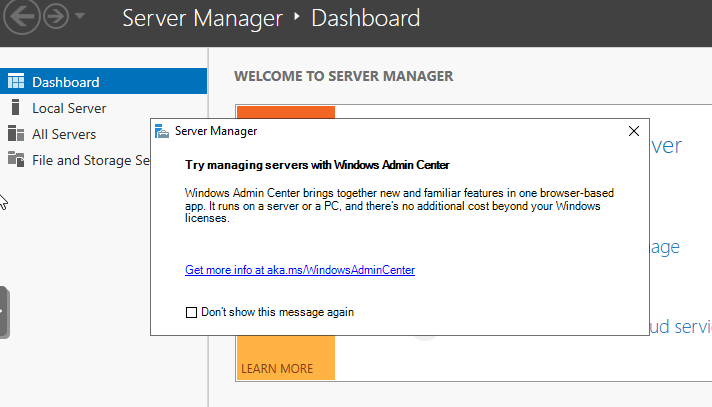
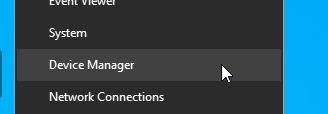
Open Device Manager
You will see three things to fix.
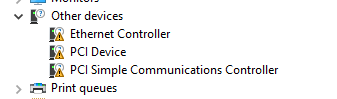
Install the Ethernet Controller driver
Right click and choose Update driver for the Ethernet Controller.
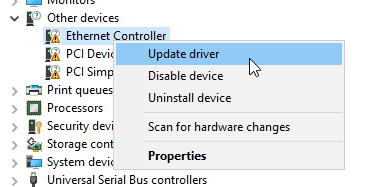
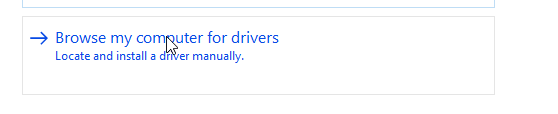
Choose Browse my computer for drivers.
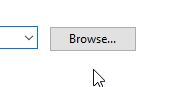
Click Browse again.
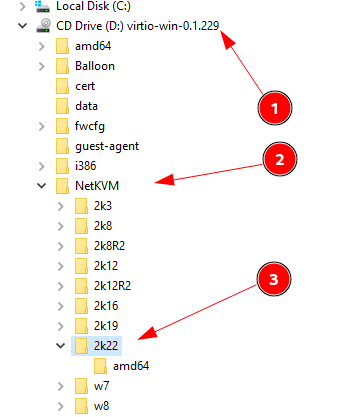
Expand the VirtIO ISO disk (1), expand NetKVM (2), and select 2k22 (3), then click OK.
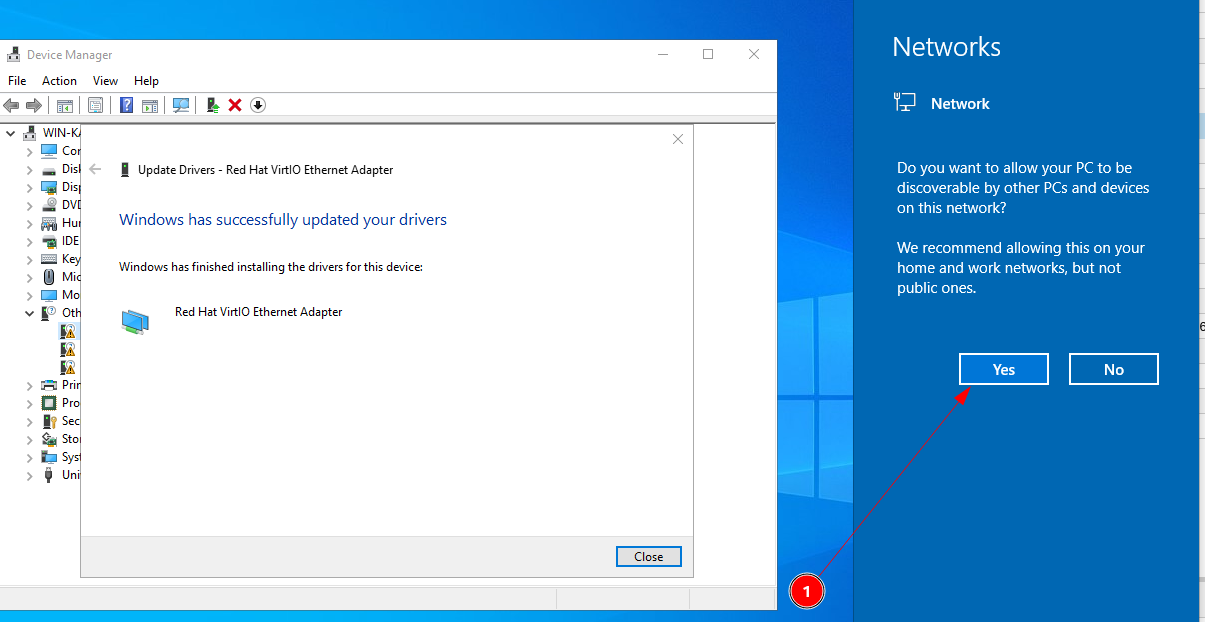
Hit Next and it will install the driver. Before you hit close, you will want to hit Yes on the Network discoverability screen for most use cases.
Install the remaining two drivers
Repeat the process for the remaining two items:
| Device Manager Entry | VirtIO Driver Folder |
|---|---|
| PCI Device | Balloon folder |
| PCI Simple Communications Controller | vioserial folder |
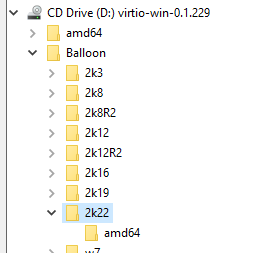
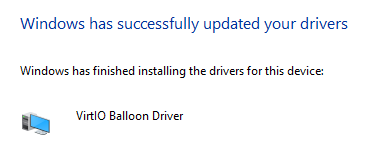
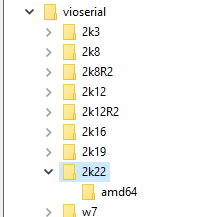
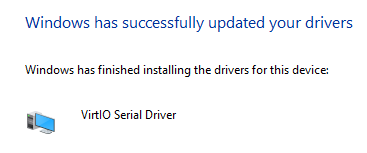
Now you have all the drivers for the system devices.
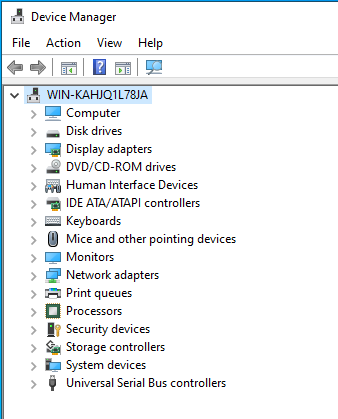
Part 5 — Install the QEMU Guest Agent
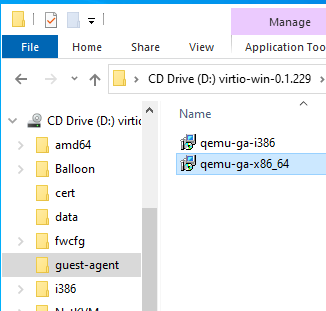
Browse to the CD drive in Windows Explorer and install the guest agent.
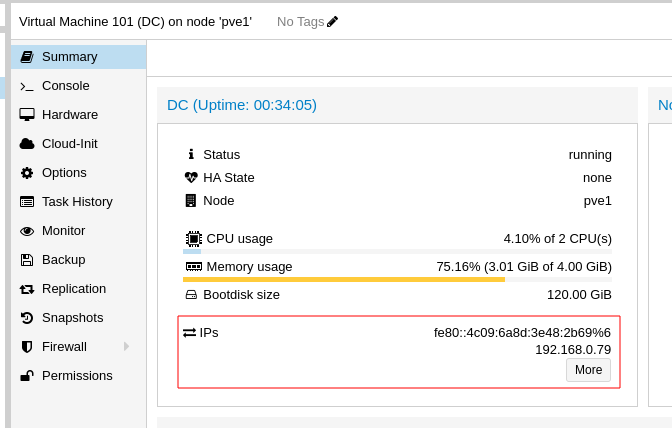
You will know the guest agent is properly installed if you see the IP addresses on the Proxmox Summary screen.
Part 6 — Cleanup
Shut down the VM. Remove the extra CD drive (the VirtIO ISO). Unmount the Windows ISO from the primary CD drive. Start the VM back up and setup the server for the task you installed it for.
Quick Reference — VirtIO Driver Mapping
| Component | VirtIO Folder | When to Install |
|---|---|---|
| SCSI Storage Controller | vioscsi\amd64\2k22 | During Windows setup (Load Driver step) |
| Network Adapter | NetKVM\amd64\2k22 | Post-install via Device Manager |
| Balloon (Memory) | Balloon\amd64\2k22 | Post-install via Device Manager |
| Serial Port | vioserial\amd64\2k22 | Post-install via Device Manager |
| Guest Agent | Installer on CD root | Post-install via Explorer |